Custom Skins in Minecraft: How to Make and Apply Your Own Skin
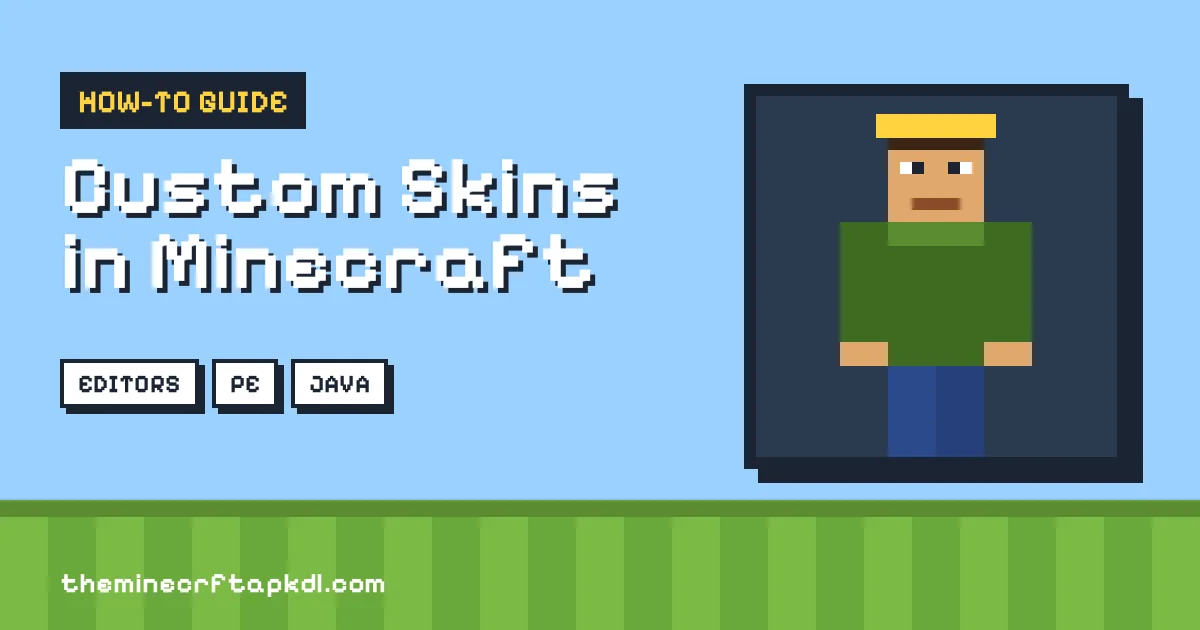
Walking around as the default Steve or Alex is fine for a day or two, but sooner or later you want a character that looks like you. Custom skins in Minecraft let you play as a knight, a robot, a superhero or an exact copy of yourself. This guide covers custom skins in Minecraft from start to finish: how skins work, the best free skin editors, how to design a skin step by step, and how to apply it on Android, iPhone, Windows and Java Edition.
All of it works with the latest Minecraft APK, Bedrock Edition and Java Edition.
What Are Custom Skins in Minecraft?
Before you make custom skins in Minecraft, it helps to know how they work. A skin is the texture wrapped around your player model. It is a small PNG image, usually 64 x 64 pixels, laid out like an unfolded paper doll: head, body, arms and legs each have their own area. When you load a custom skin, the game folds that image around your character.
| Skin Detail | What You Need to Know |
|---|---|
| File type | PNG image |
| Standard size | 64 x 64 pixels (older skins are 64 x 32) |
| Classic model | Steve-style arms, 4 pixels wide |
| Slim model | Alex-style arms, 3 pixels wide |
| Base layer | The main body texture |
| Outer layer | Hats, jackets, sleeves and pants that sit on top |
Why Use Custom Skins?
- Stand out: on a busy server, a unique skin makes you easy to recognise.
- Express yourself: match your favourite colours, hobbies or style.
- Roleplay: dress as a farmer for survival, a wizard for adventure maps or a pirate for ocean worlds.
- Content creation: YouTubers and streamers use a signature skin as part of their brand.
- It is free: making and importing your own skin costs nothing.
Best Skin Editors for Minecraft
| Editor | Platform | Best For |
|---|---|---|
| The Skindex (minecraftskins.com) | Web | Beginners; huge gallery of community skins to edit |
| NovaSkin | Web | Detailed work with a live 3D preview and poses |
| Skinseed | Android and iOS | Designing skins right on your phone |
| Blockbench | Web, Windows, Mac | Advanced painting and Bedrock models |
| Character Creator | Inside Bedrock | Quick outfits without any editor |
Official skin help is also on Minecraft.net. Most players start with the Skindex or NovaSkin on a computer, or Skinseed on a phone. All three can export a ready-to-use PNG.
How to Make Custom Skins in Minecraft (Step by Step)
- Know the goal: great custom skins in Minecraft start with a clear idea of the character.
- Pick a model: choose Classic (wide arms) or Slim (thin arms) before you start, because the arm area is different.
- Start from a template: load the default Steve or Alex, a blank skin, or an existing skin you like. Editing is much faster than starting from zero.
- Plan the design: decide on a theme and two or three main colours. A quick sketch on paper helps.
- Paint the base layer: fill in skin tone, clothes and shoes using the pencil and fill tools. Zoom in for pixel-perfect detail.
- Add the face and hair: eyes, mouth and hair give your character most of its personality. Keep them simple and readable.
- Use the outer layer: add hats, hoods, glasses, jacket edges or armour on the second layer so they stand out in 3D.
- Shade it: use a slightly darker shade near edges and a lighter one in the middle for depth.
- Turn on mirror mode: paint one arm or leg and let the editor copy it to the other side.
- Check the 3D preview: rotate the model and look for gaps, wrong colours or misplaced pixels.
- Download the PNG: save it somewhere easy to find, like your Downloads folder or Google Drive.
How to Apply Custom Skins in Minecraft PE (Android and iOS)
- Open Minecraft and tap Dressing Room (the hanger icon under your character) or Profile, depending on your version.
- Open the Classic Skins tab.
- Under Owned, tap the empty skin slot, then Import.
- Tap Choose New Skin and select your PNG file.
- Pick the arm type (Classic or Slim) when asked.
- Confirm, and your new skin is equipped.
The same steps work in Minecraft for iOS and Bedrock for Windows. Keep a copy of your PNG files; our guide on backing up Minecraft explains how.
How to Apply Custom Skins in Minecraft Java Edition
- Open the Minecraft Launcher and select Minecraft: Java Edition.
- Click the Skins tab, then New skin (the plus card).
- Give it a name and choose Classic or Slim.
- Click Browse and pick your PNG.
- Click Save & Use. The next time you join a world or server, everyone sees your new look.
Playing on a computer? See Minecraft for PC for download options.
Using the Bedrock Character Creator
Not everyone wants to paint pixels to get custom skins in Minecraft. Bedrock also has a built-in Character Creator in the Dressing Room. Instead of painting pixels, you pick a body, hair, eyes, clothes and emotes from menus. Many items are free, while others come from the Marketplace for Minecoins. It is the fastest way to customise your character, but imported PNG skins give you full freedom over every pixel.
Tips for Better Custom Skins
- Keep it simple: skins are tiny, so bold shapes and clear colours read better than fine detail.
- Limit your palette: two or three main colours plus a few shades look clean.
- Use contrast: dark clothes with bright details, or the other way round, make the character pop.
- Test in-game: lighting in the game can change how colours look, so check in daylight and at night.
- Save versions: keep older PNGs so you can return to a design you liked.
- Make seasonal skins: holiday outfits are a fun way to refresh your look.
Common Skin Mistakes and Fixes
| Problem | Cause | Fix |
|---|---|---|
| Black or grey patches on the arms | Wrong model chosen (Slim skin on Classic or the reverse) | Re-import and pick the correct arm type |
| Hat or jacket missing | Details painted on the base layer, or outer layer hidden | Paint them on the outer layer and turn on Skin Customization options in Java |
| Strange holes in the head | Transparent pixels on the base layer | Fill every base layer pixel with colour |
| Import button does nothing | File is not a PNG or the size is wrong | Export again as a 64 x 64 PNG |
| Others cannot see my skin | Some servers block custom skins | Check the server rules or play on Realms or your own world |
Frequently Asked Questions
Are custom skins in Minecraft free?
Yes. Making a skin with a free editor and importing it costs nothing. Only some Marketplace skin packs and Character Creator items cost Minecoins.
What size should a Minecraft skin be?
A standard skin is a 64 x 64 PNG image. Older 64 x 32 skins still work but have no separate outer layer for arms and legs.
Can other players see my custom skin?
Yes, in your worlds, on Realms and on most servers. A few servers restrict custom skins.
Can I use the same skin on Java and Bedrock?
Yes. The same 64 x 64 PNG works in both editions; you just import it separately in each one.
Do custom skins work in Minecraft PE?
Yes. Import the PNG through the Dressing Room under Classic Skins, then Owned, then Import.
Final Thoughts
Custom skins in Minecraft are one of the easiest ways to make the game feel personal. Pick an editor like the Skindex, NovaSkin or Skinseed, start from a template, keep the design simple, use the outer layer for accessories, and export a 64 x 64 PNG. Then import it through the Dressing Room on Bedrock or the Skins tab in the Java launcher. Once your character looks the part, give it a proper home with our guide on how to build a house in Minecraft, or add more content with Minecraft mods.